How to Use RACHIDE
Follow these simple steps to get started with expense tracking
Frequently Asked Questions
Yes, on participants setup, create it with e-mail and add it to the event. After registration, RACHIDE will show default 'View only' on that participant. You can select 'Don't access' or 'Can add/edit expenses'. With some of these options, the user will be notified by email to access, view and edit the event.
On expense registration, select 'Manual' division. After registration, RACHIDE will show all participants with equality values by each participant. You can remove some participant by tapping 'Divide Amount Among Others'. This action will divide the value between other participants. You can also manually enter the value of each user. Depending on sum of all values, RACHIDE will show for you if the values match or not.
It's not mandatory. RACHIDE allows you to change the value of each division as you wish. At the end of the process, RACHIDE will show if there is any value discrepancy.
If you want, you can generate and copy a link that you can send to anyone. This link is public but secure - only those who receive the link will be able to access it. Access through this link allows only viewing the event information, without the possibility of editing.
RACHIDE automatically calculates and suggests the best ways to settle payments between participants, showing who should pay whom and how much. This can be viewed on the event overview page or in the sharing options.
How to Use RACHIDE
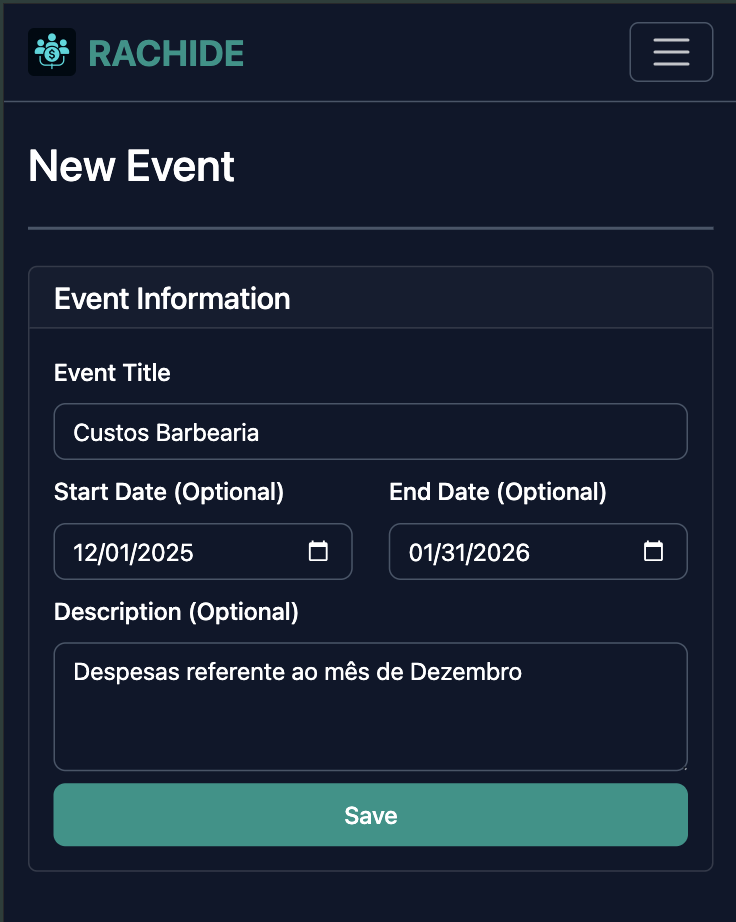
Image placeholder - Add your screenshot here
Create an Event
Start by creating a new event. This can be a trip, party, shared living expenses, or any group activity.
- Title is required
- Description is optional
- Start and end dates are optional
Associate Participants
Add people to your event.
Recorded Tab
If you created previous participants, they can be found on the 'Recorded' tab.
New Tab
Only the name is required, but if you want to keep the participant registered, provide the email.
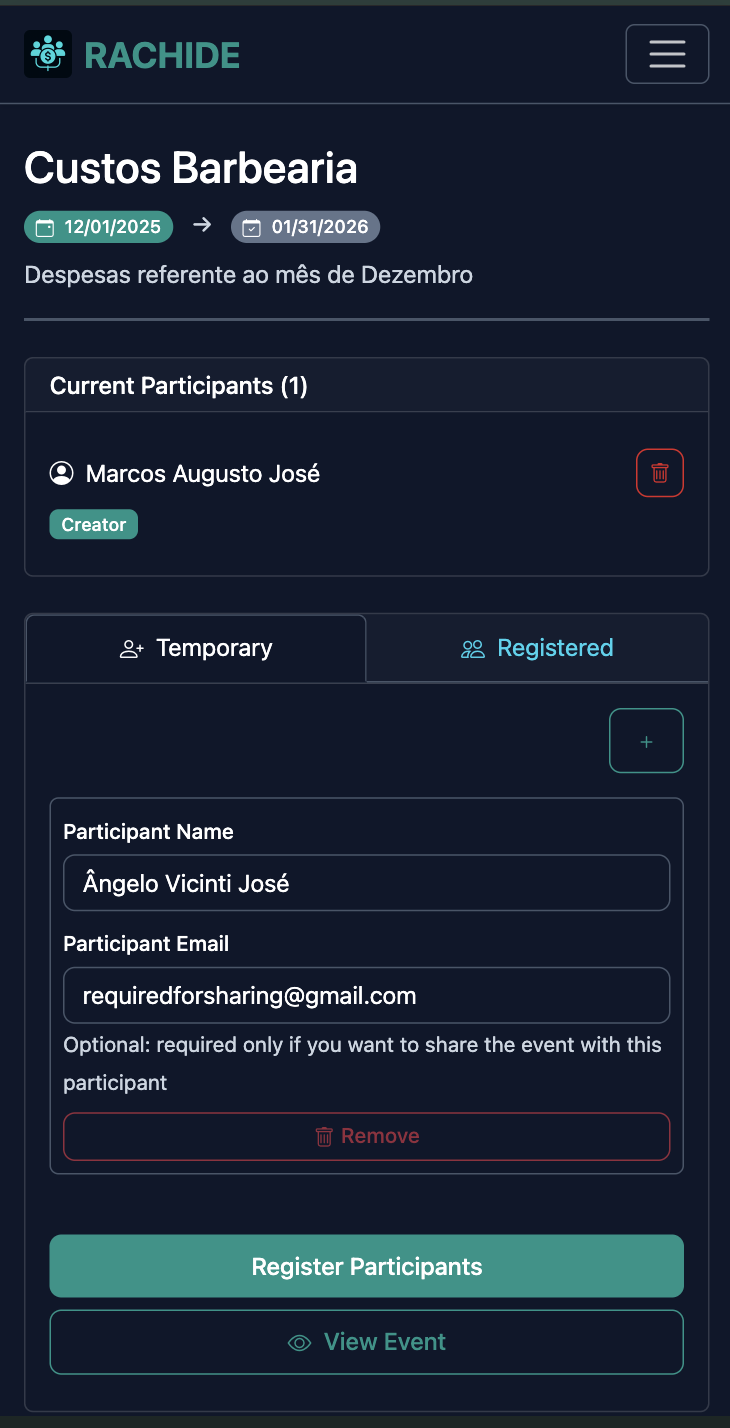
Image placeholder - Add your screenshot here
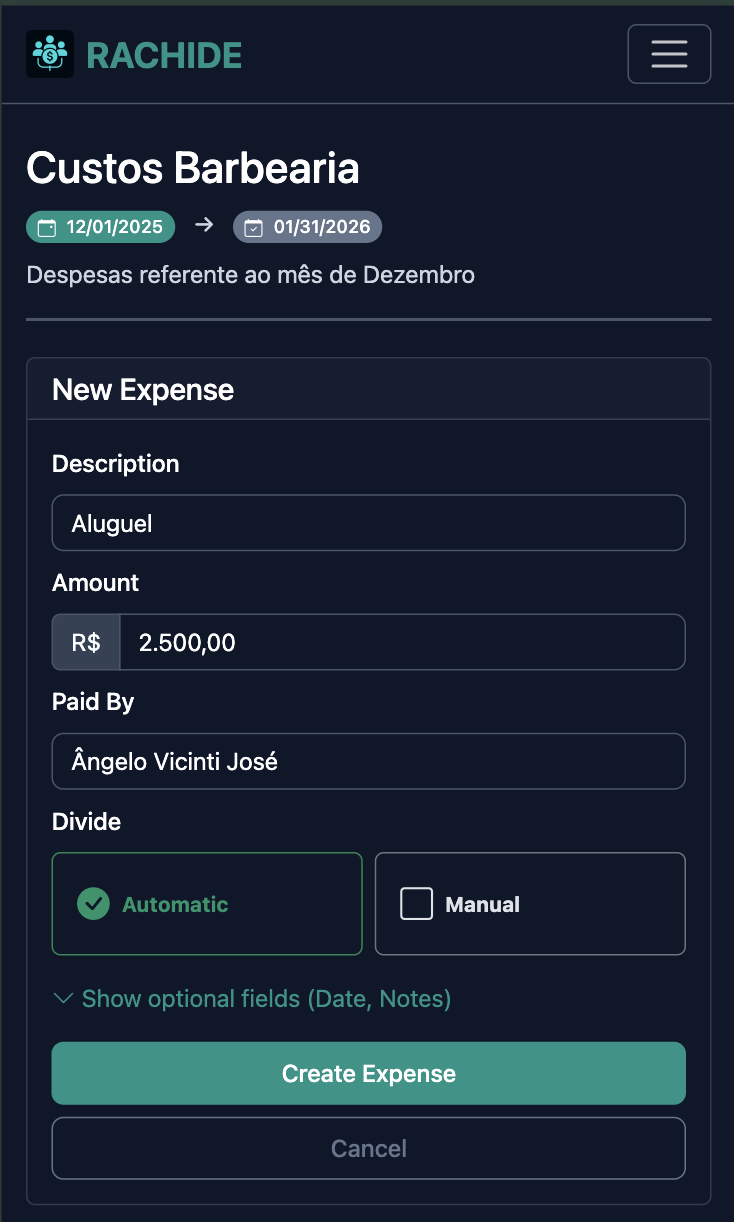
Image placeholder - Add your screenshot here
Add an Expense
Record expenses with title and value. Choose how to divide the expense among participants.
Automatic Division
Keep 'Auto' selected to automatically divide the expense equally between all participants.
Manual Division
Select 'Manual' to change individual amounts or remove participants from the expense.
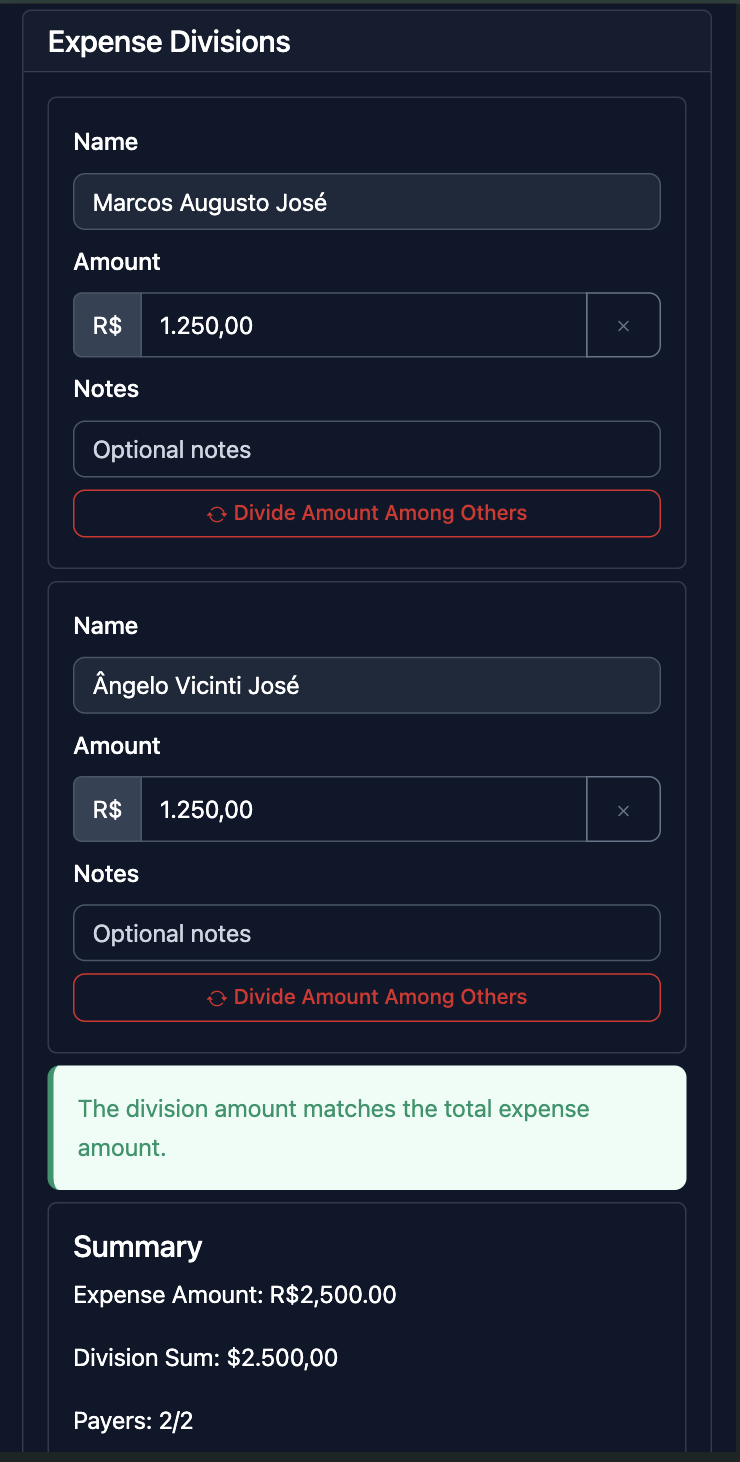
Image placeholder - Add your screenshot here
Divide the Expense
After creating an expense, you need to divide it among the participants. You can customize how much each person owes.
Customize Division
Adjust individual amounts for each participant, or remove participants who shouldn't be part of this expense. If the total expense amount doesn't match 100% of the division sum, that's fine - the system will display this information.
Follow and Share the Event
Track your expenses and share the results with others. Complete the event when finished.
- Complete the event to finalize all expenses
- Share PDF summary of the event
- Copy and share text summary
- Generate shareable link for others to access the event page
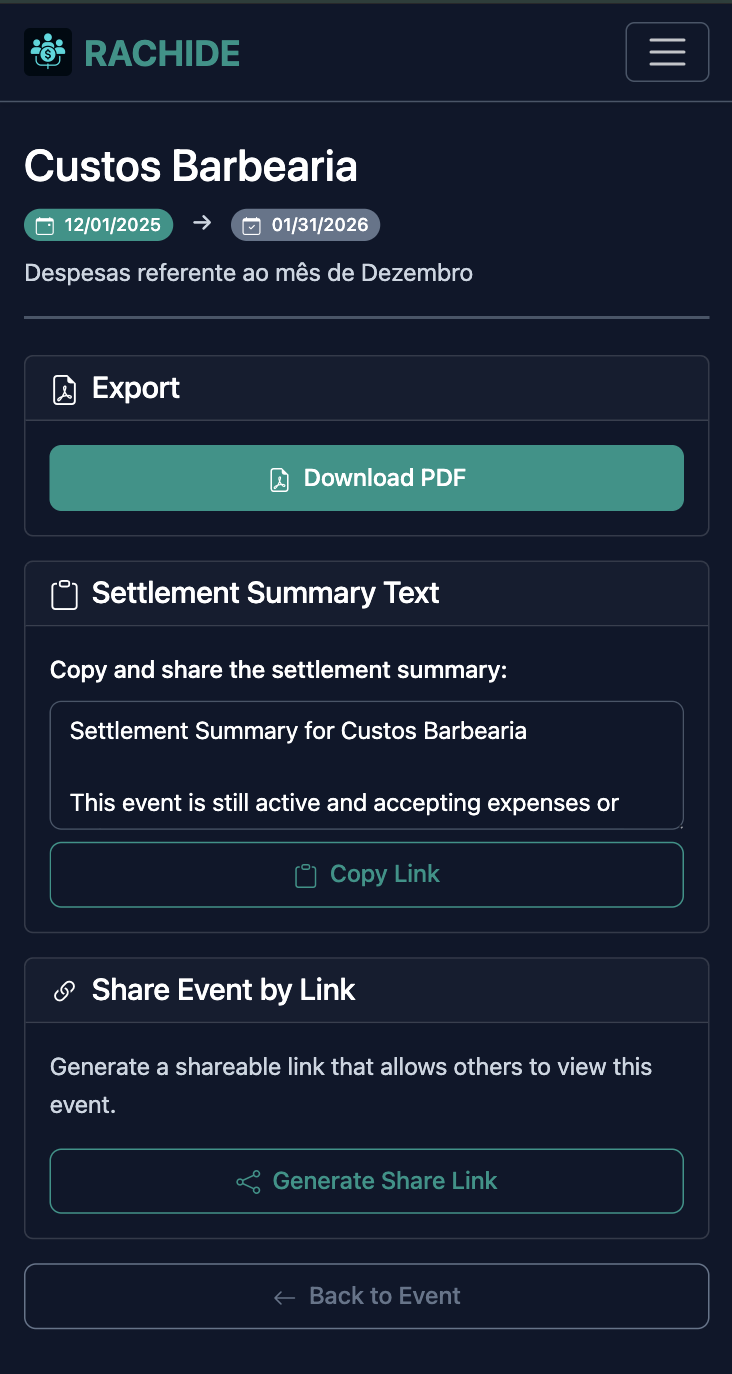
Image placeholder - Add your screenshot here
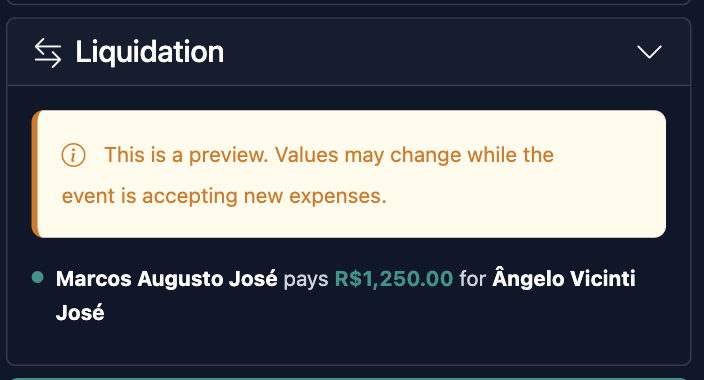
Image placeholder - Add your screenshot here
Liquidation Suggestions
RACHIDE automatically calculates the best ways to settle payments between participants based on who paid and who owes money.
How It Works
RACHIDE analyzes all expenses and payments to determine who owes money and who should receive payments. It then suggests optimal transfer strategies, such as direct payments or hub-and-spoke methods where one person collects and distributes.
Where to Find It
Liquidation suggestions appear in the 'Liquidation' section on the event page and in the 'Sharing Options' page. If the event is still active, the section is collapsed by default as values may change.
Ready to Get Started?
Create your first event and start tracking expenses with your group.
Sign Up Now